


The Connective Leadership™/Achieving Styles™ Assessment Suite
The Connective Leadership Institute has developed seven inventories, or assessments, for measuring Connective Leadership™ Profiles and the underlying Achieving Styles™ repertoire, as well as aspired change.
Assessment Quick Links
Background
Fourteen versions of the Achieving Styles Inventory (ASI) have been developed and tested over the past 30 years. In 1983, we decided that ASI Version 13R had the soundest psychometric properties, and, since then, we have used ASI Version 13R exclusively.
Although the total database exceeds 40,000 cases, the current database in use includes approximately 30,000 cases, all of which have been collected since 1983 using ASI Version 13R.
The Inventories were developed by Jean Lipman-Blumen, Thornton F. Bradshaw Professor of Public Policy and Professor of Organizational Behavior, at the Peter F. Drucker and Masatoshi Ito Graduate School of Management, Claremont Graduate University, and Harold J. Leavitt, Walter Kenneth Kilpatrick Professor of Organizational Behavior and Psychology, at the Graduate School of Business, Stanford University.

The Seven Connective Leadership™/Achieving Styles™ Assessments
The Connective Leadership Institute processes the Inventories and allows individuals to view and print out their own results. For consultants accredited by the Connective Leadership Institute who wish to receive the results for later return to their own clients, arrangements may be made through the Institute.
 Achieving Styles™ Individual Leadership Inventory (ASI)
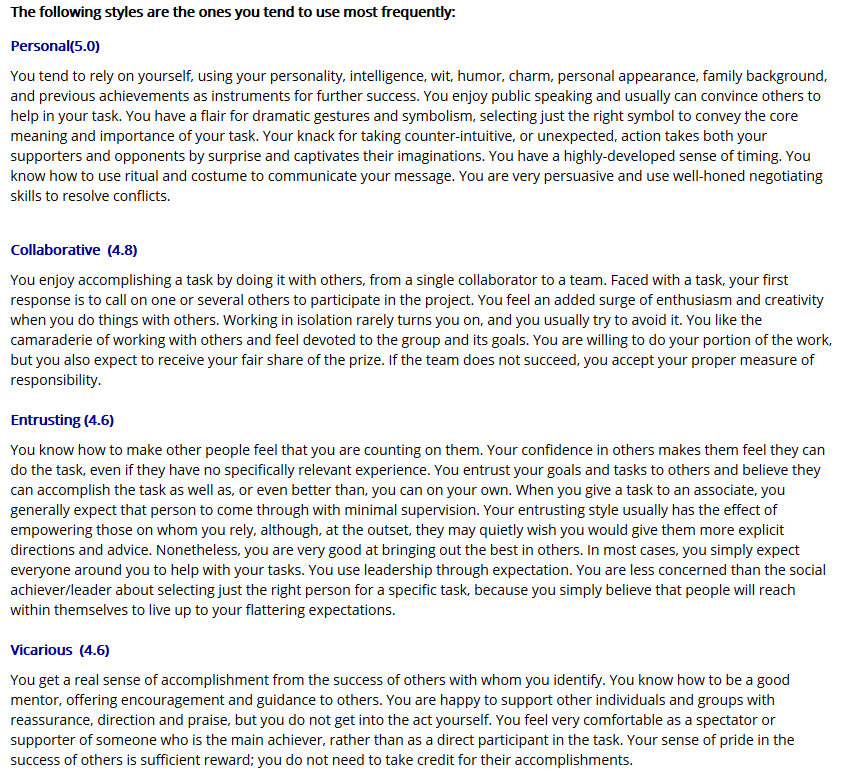
Measures the leadership behaviors that individuals use to accomplish their goals. The Individual Inventory identifies nine leadership behaviors. When taken together, they constitute an individual’s Connective Leadership™ Profile.
What the Results Look Like
The results for the Individual Inventory (ASI) are presented as a polar graph with narrative feedback that describes an individual’s Connective Leadership Profile. The feedback details the behavioral styles that the individual calls upon most frequently, as well as those that the individual uses less often. The narrative describes the strengths and drawbacks of the frequently used styles, as well as the benefits the individual foregoes by failing to use the remaining styles.




 Aspirational Achieving Styles™ Individual Leadership Inventory (A-ASI)
Measures the leadership behaviors that individuals aspire to use in the future to accomplish their goals. Used in conjunction with the ASI, the A-ASI enables an individual to compare his or her current leadership behaviors to those he or she aspires to use in the future.
 Achieving Styles™ Organizational Inventory (OASI)
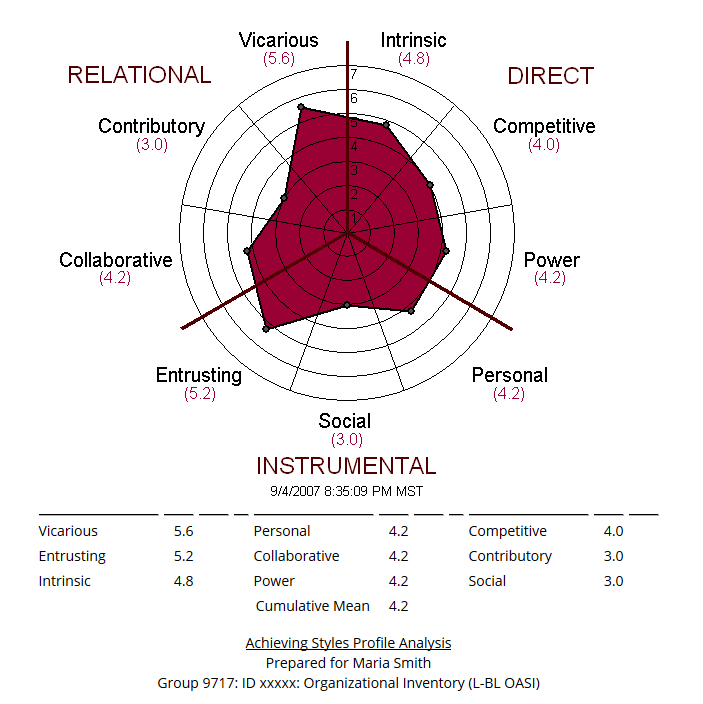
Measures the leadership behaviors that an organization values and rewards. Used in conjunction with the ASI (Individual), the Organizational Inventory can determine the fit between an individual’s leadership behavior and the leadership behavior valued and rewarded by a particular organization.
What the Results Look Like
The results for the Organizational Inventory (OASI) are presented as a polar graph with narrative feedback describing the leadership behaviors that the organization rewards, as well as those behaviors it tends to disregard.



 Aspirational Achieving Styles™ Organizational Inventory (A-OASI)
Measures the leadership behaviors that you feel your organization should value and reward in the future. Used in conjunction with the OASI, the A-OASI enables an organization to compare how it currently values and rewards leadership behaviors to how it would like to reward and value those behaviors in the future.
 Achieving Styles™ Situational Evaluation Technique (ASSET)
Measures any specific task or position in terms of the leadership behaviors that are necessary for success. Used in conjunction with the ASI, ASSET can rank order the candidates in terms of their Achieving Styles™ fit for any particular task or position.
Two Versions
ASSET-P: Position or Role
ASSET-T: Task
What the Results Look Like
The results for the Achieving Styles Situational Evaluation Technique (ASSET) are presented as a polar graph describing the unique combination of leadership behaviors required for successfully completing any specific task or project.


 Achieving Styles™ 360° Feedback Inventory Suite (ASI360F & ASI360E)
Consists of two Inventories: one that measures the individual leadership behaviors of a focal person (ASI360F) and another Inventory that measures perceptions of that person’s behaviors, as seen by relevant peers, colleagues, direct reports, supervisors, clients/customers, acquaintances, etc. (ASI360E). This Inventory Suite is useful in executive and leadership coaching, as well as in conflict management situations.
 Aspirational Achieving Styles™ 360° Feedback Inventory Suite (A-ASI360F & A-ASI360E)
Consists of two Inventories: one that measures the leadership behaviors that a focal person aspires to use in the future to accomplish his or her goals (A-ASI360F) and another Inventory that measures the leadership behaviors that a focal person should aspire to use, as perceived by relevant others (A-ASI360E). Used in conjunction with the ASI360, the A-ASI360 not only enables an individual to compare his or her current leadership behaviors to those he or she aspires to use in the future, but the evaluator’s inventory helps the focal person understand both how relevant others perceive his or her current behaviors and the behaviors they would prefer the Focal Person use in the future.
How to take an Achieving Styles Inventory online
Individuals associated with a group who have been assigned a username and password can click here.
Individuals not associated with a group may take an Assessment assisted by a Certified CLI Associate.
Cost of CLI Services and Achieving Styles Inventories
Rates for groups taking the Assessments are based upon three factors:
- The type of organization (e.g., for profit, not for profit, education, and government) to which the participants taking the inventories belong (as distinct from the type of organization that the consultant/group leader represents);
- The number of participants taking the inventories.
- The number of assessments per individual ordered simultaneously, that is, “bundled
Rates for seminars are based on the type of organization the individual(s) represents.
Please contact the Connective Leadership Institute for more detailed information on services and rates.
Request A Study Group
Thank you for your interest in requesting a CLI Study Group. In order to conduct a group through CLI, the group leader must be a CLI Certified Associate (CLI-CA). To find a CLI Certified Associate (CLI-CA) to host your group, please contact CLI: email: [email protected]
Tel: +1-201-564-0112.
If you would like to be trained as a CLI-CA, please join us for our upcoming CLI Leadership Development Certification Training Seminar. Click here for more information: http://assess.connectiveleadership.com/asi/cli_seminars.asp
How to View the Results
Results for the Individual Inventory (ASI), Organizational Inventory (OASI), Situational Evaluation (ASSET) and 360 Inventory (ASI360), as well as their aspirational versions, are all available immediately after an Assessment is submitted if that feature has been enabled for your group.
If you are part of a group that is allowed to view your results online, there will be a link to ‘View the Results Now’ on the confirmation page that appears when Section 3 of the Assessment is completed.
A copy of the results will also be emailed to you if you provided an email address in Section 1 of the Assessment.
You may log in to the CLI website and view your results at any time. Your CLI ID# is required to log in and view the results. If your CLI ID# is not available, you may request your CLI ID# to view results from the Institute.